
Importing Data from Another FINPACK File
FINPACK allows users to import data from a different FINPACK data file into their current file. This feature allows the receiving file to add or import new data, without overwriting the remaining contents of the file. An example of when to use this feature is a lender wanting to import a Detailed Balance Sheet already completed by an educator or customer. By importing the data, the lender’s file maintains intact with the historical reports like Presentations, Collateral Analysis, Risk Reports, etc.
File + Import is used in the open FINPACK file to bring the desired FINPACK data in from another source.
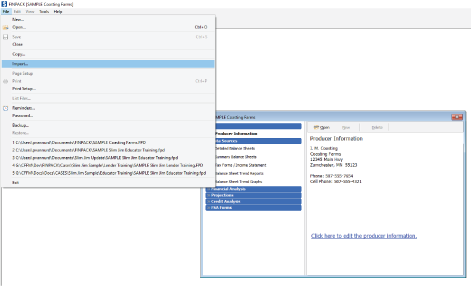
Step 1: Select File. Browse for the file to import from using the  icon. When the file is found and selected, the producer/company information for this source file appears. Click Next to continue.

Step 2: Select Data to Import. First, select the Type of data… Then select the Specific Item to import. Click Next to continue.

Step 3: Check for Duplicates: FINPACK will check for duplicate names and/or Balance Sheet dates prior to importing the new data. If any exist, adjustments must be made.
For example, when importing a Monthly Cash Flow Plan (FINFLO), the assigned Detailed Balance Sheet and set of Crop & Livestock Budgets for that Monthly Cash Flow Plan (FINFLO) are also imported. If any Detailed Balance Sheet dates or any descriptions are the same in the source file as in the destination file, naming changes will need to be made so the imported data is unique. It is a best practice to enter a more unique description than the default.
On the left are tabs for the duplicate data items. For a Detailed Balance Sheet, change or add a description, since the date cannot be changed. By default, duplicate descriptions will include a (2), indicating this is the duplicate item to be imported. This (2) can remain, or the description can be changed.
When duplicates have been resolved, click Finish to complete the import.

The Detailed Balance Sheet description was changed to “Customer Copy” in this example. When viewing the available Detailed Balance Sheets in the file, after finishing the import, the Dec. 31, 2016 – Customer Copy Balance Sheet is listed along with the Dec. 31, 2016 Balance Sheet originally in the file.

Note: When importing a statement that includes other FINPACK components, the components used by that statement will also be imported. For example, when importing a Monthly Cash Flow Plan (FINFLO), the Detailed Balance Sheet, and Crop & Livestock Budgets tied to the Monthly Cash Flow Plan (FINFLO) are also necessary to import and this will happen automatically. This holds true for the Financial Analysis (FINAN) as well.
Therefore, it is a best practice to import the statement that includes multiple components, and do not individually import all components. When a Monthly Cash Flow Plan (FINFLO) or Financial Analysis (FINAN) is imported, the related Detailed Balance Sheets and Crop & Livestock Budgets are also automatically imported. If the Detailed Balance Sheet or Crop & Livestock Budgets are imported first, a Duplicate Name situation occurs. Even once this is rectified, the file will now have multiple copies of the same Detailed Balance Sheet or Crop & Livestock Budgets, as an example.
When importing a Financial Analysis (FINAN) from an outside party (educator or customer), a lender can continue to use the internal Detailed Balance Sheet that has been previously prepared. Once the Financial Analysis (FINAN) is imported in to the local file, the lender can determine which Detailed Balance Sheet(s) should be tied to the analysis. (If the imported Detailed Balance Sheet(s) are replaced in the Financial Analysis (FINAN), it is possible to delete the unused Detailed Balance Sheet(s) from FINPACK.) Small corrections may be needed to ensure the cash and liability checks are still in balance.